1. Display message options
To see the message options, the menu item 'Messages' must be clicked in the menu on the left side.
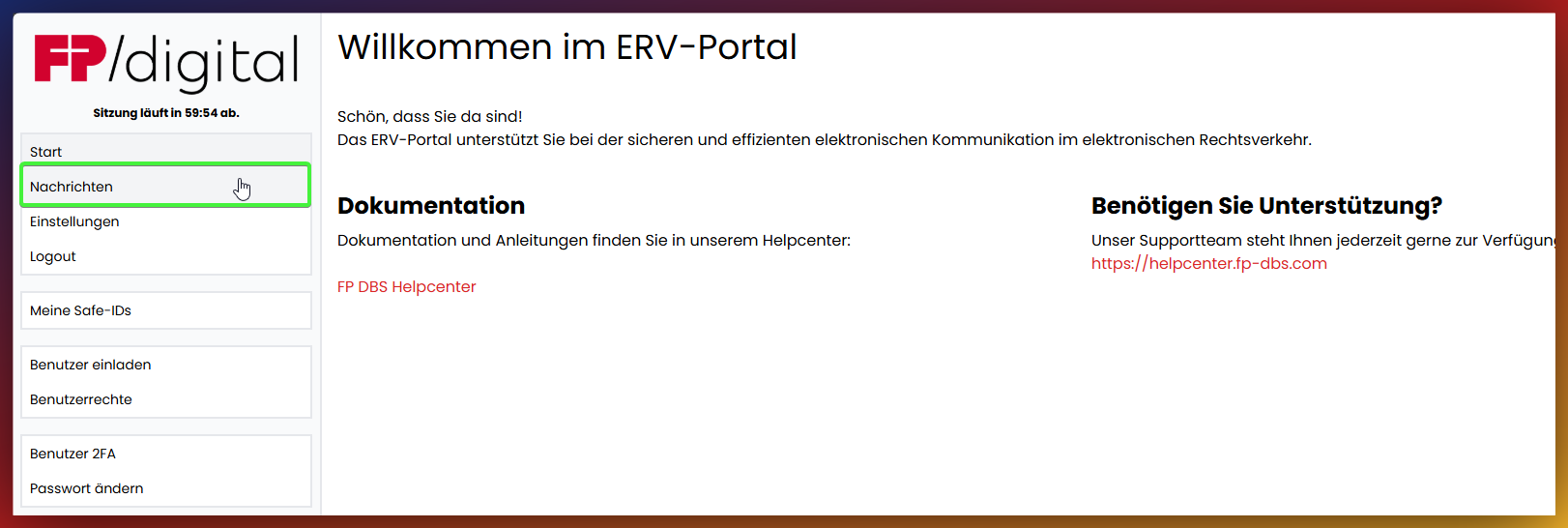
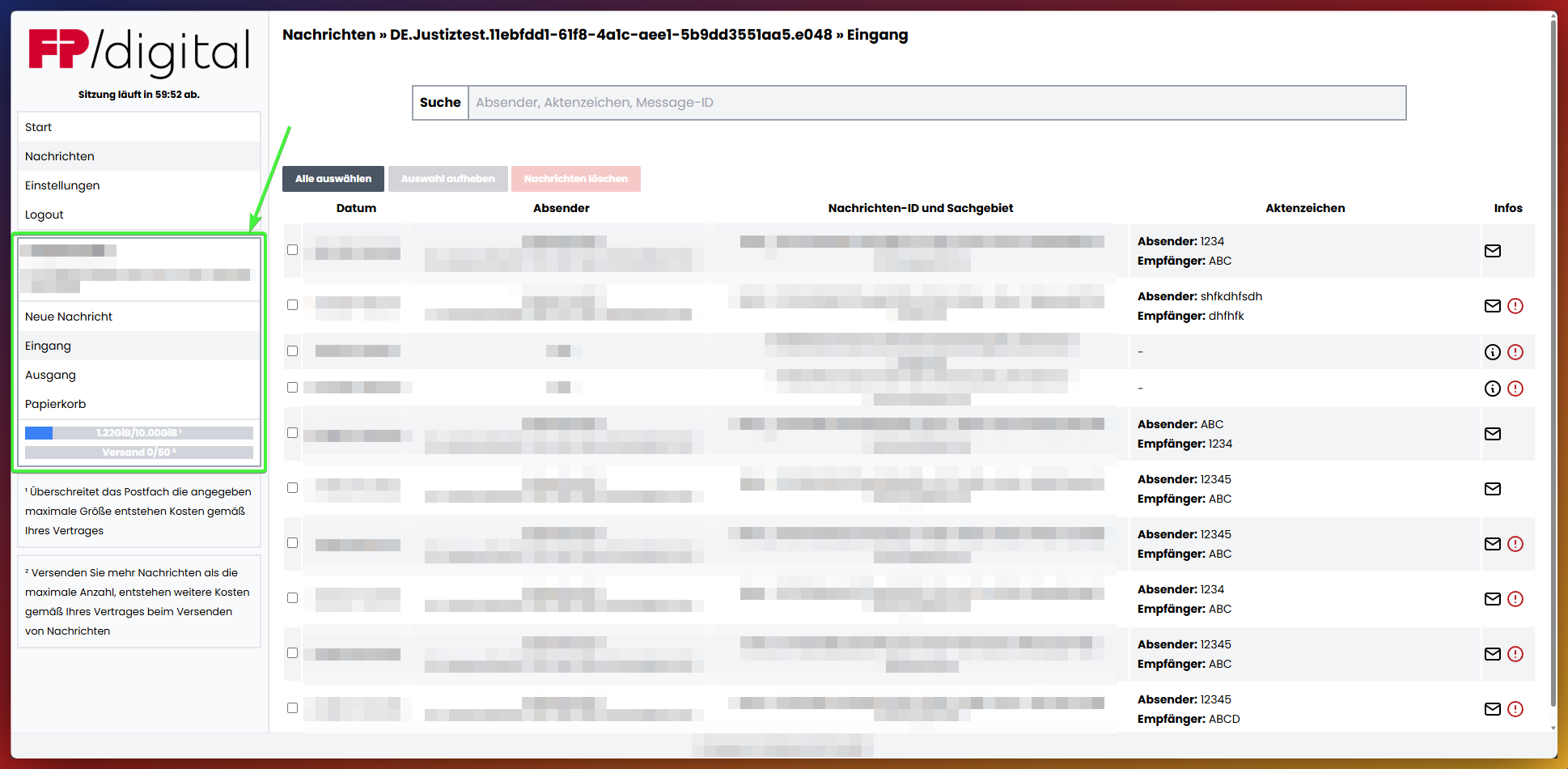
2. The Inbox: Read and manage messages
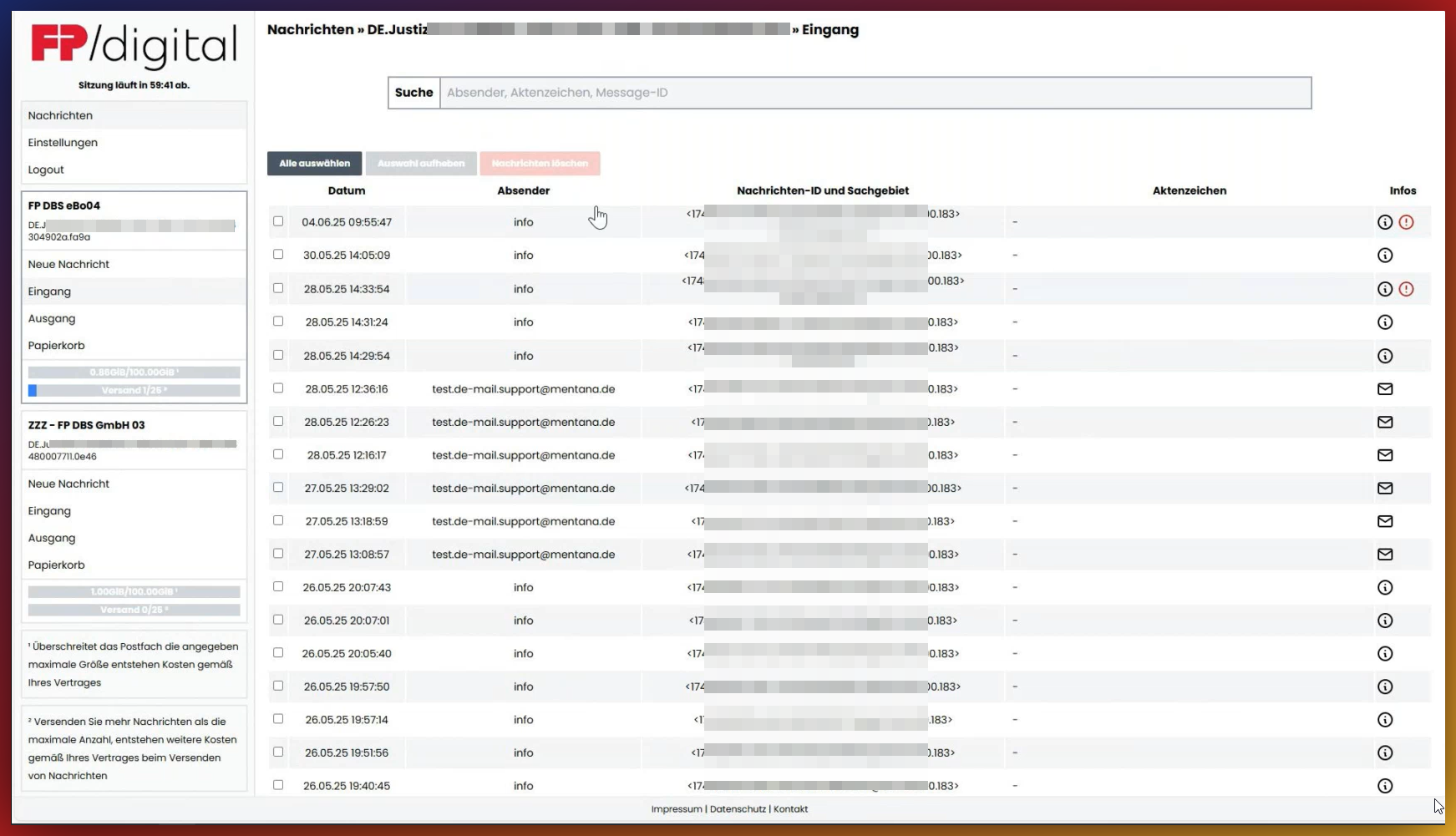
To read incoming messages, navigate to the menu item 'Messages' in the sidebar. When Messages has been clicked, the mailbox automatically opens in the Inbox. Then click on the desired message in the overview to open it.
Options of an opened message - Please click
After you have opened a message, the following options are available to you:
- Send eEB: If an electronic acknowledgement of receipt (eEB) was requested by the sender, you can send it by clicking this button. If no request is present, the button remains greyed out.
- Reply: Create a direct reply to the opened message. The recipient is automatically adopted.
- Export: Download the message as a file. You can import this into Outlook, for example, to archive it there or process it further.
- Delete: Moves the message to the trash. From there, it can be restored or permanently deleted if necessary.
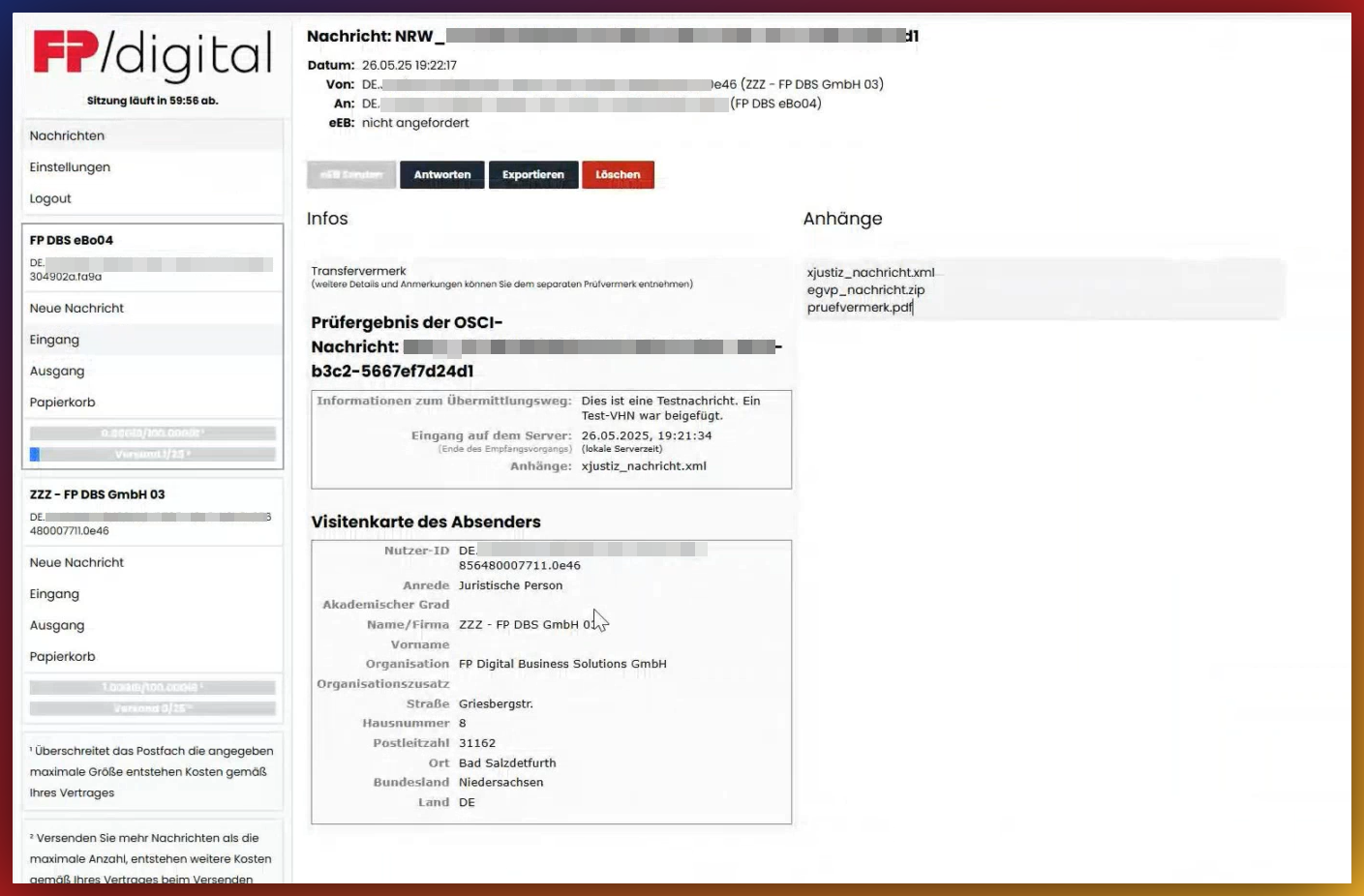
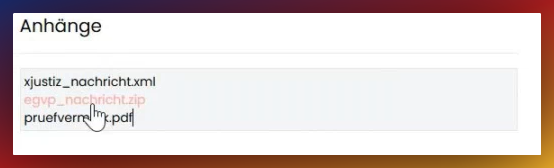
Attachments:
In the lower area of the message, you will find the "Attachments" section. Click on a file to view it directly in the browser or download it to your computer.
3. Send a new message or reply
To compose a message, either click on 'Reply' in an existing message or on 'New Message' in the sidebar.
Compose a message - Please click
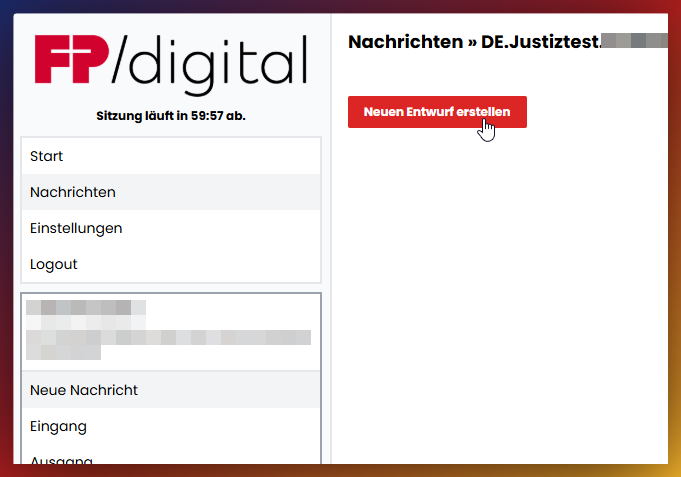
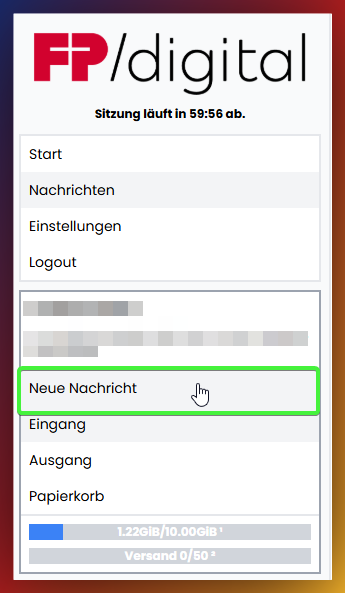 When composing a message, each action must be performed in the necessary order. The buttons for subsequent actions are greyed out until the previous action has been completed:
- Create new draft: Click on the button to create a message.
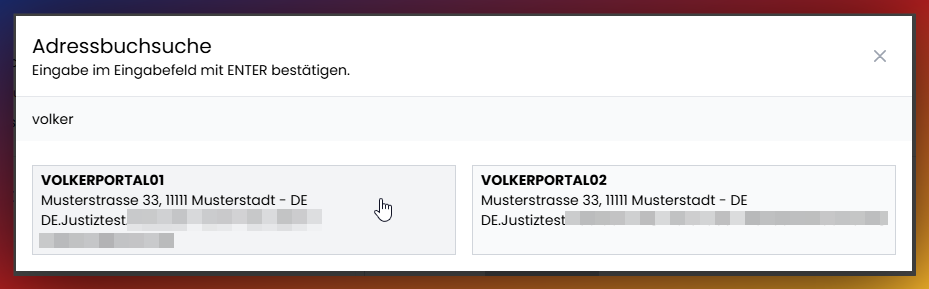
- Open address book: Use this to open the daily updated EGVP directory service. Search there for the desired recipient to enter the address correctly. When clicking on 'Reply', the address of the original sender is automatically inserted.⚠ Attention: Check the recipient carefully via the address book to ensure that your message reaches the correct addressee.
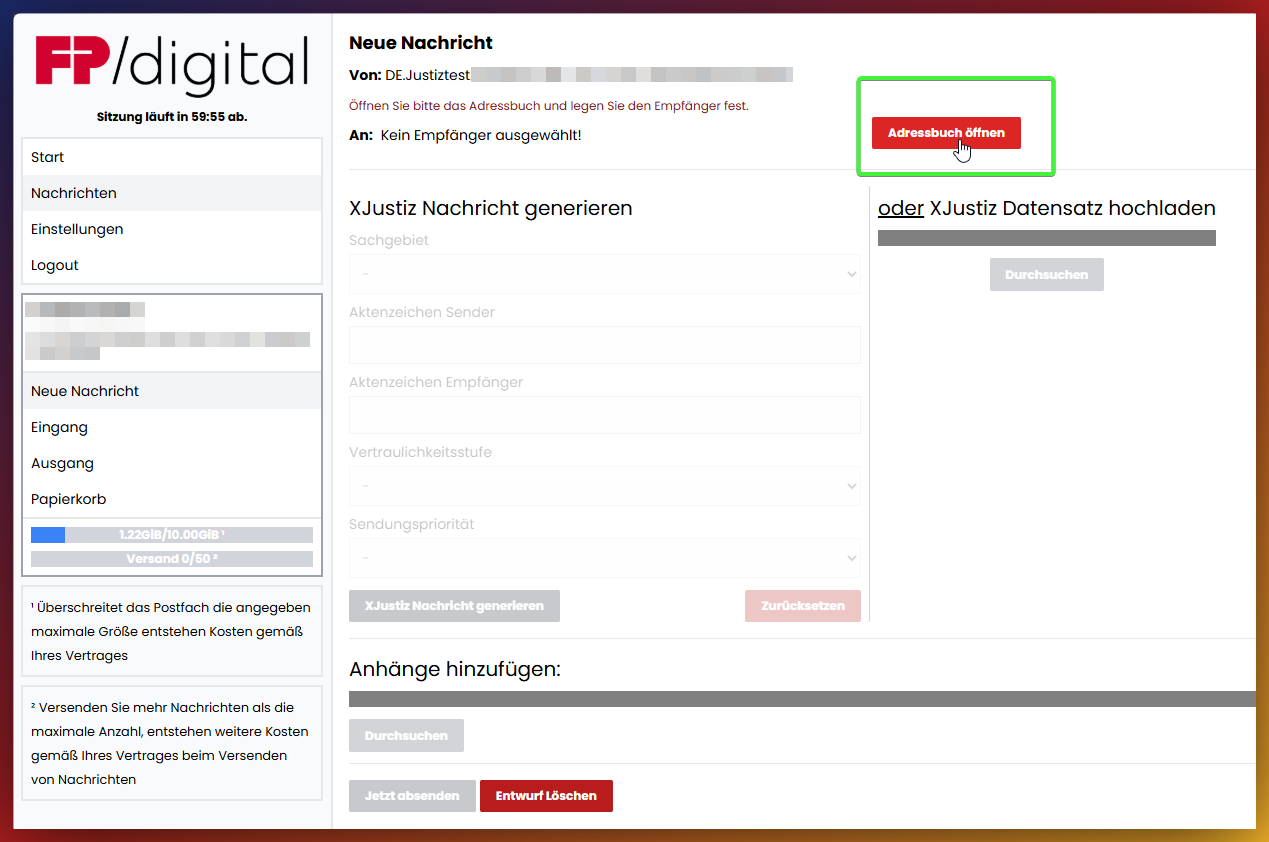
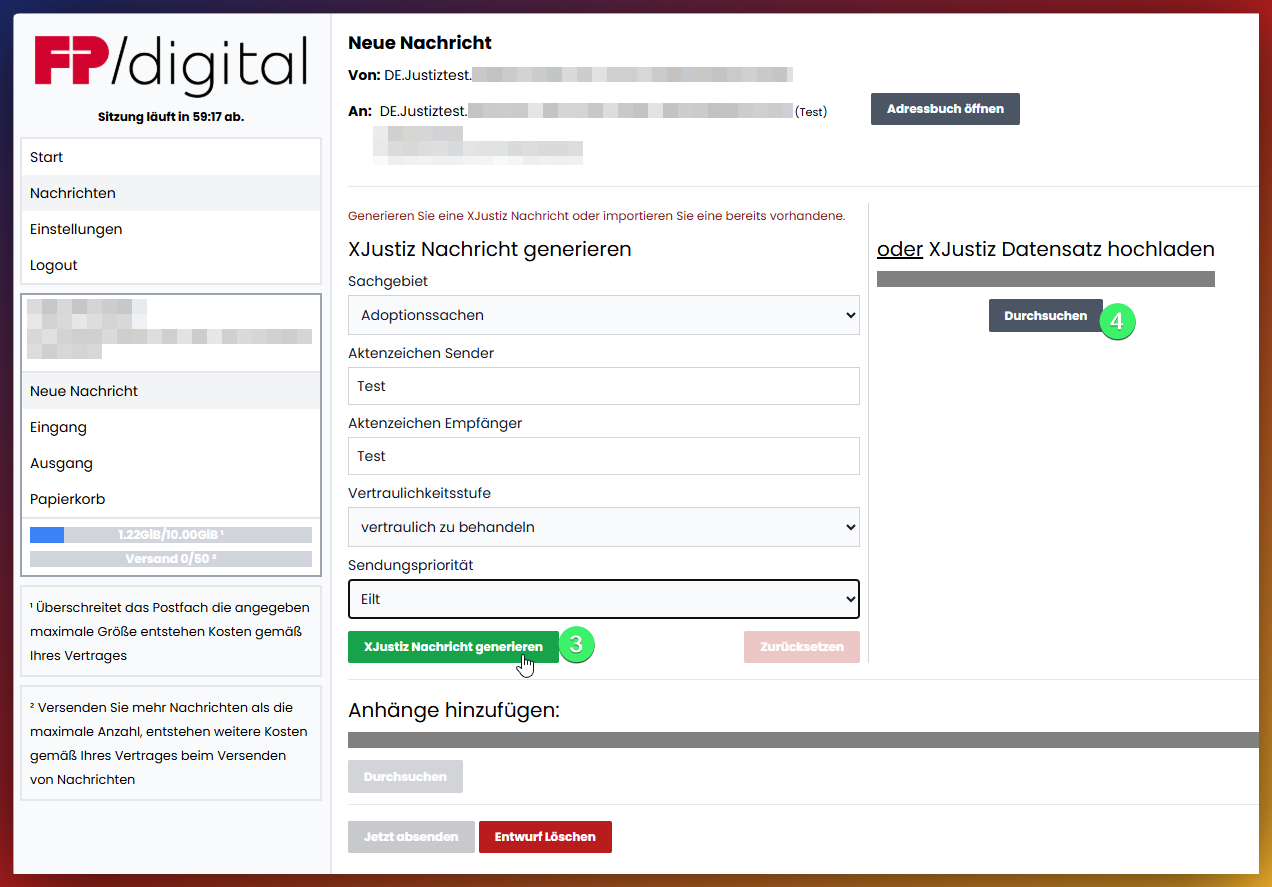
- Generate XJustiz message: Use this option to create a structured, XJustiz-compliant message from scratch. To do this, first fill in the fields above as needed.
- Upload XJustiz data record: If you have already created a finished XJustiz data record (e.g., from your specialized software), you can upload it directly here.
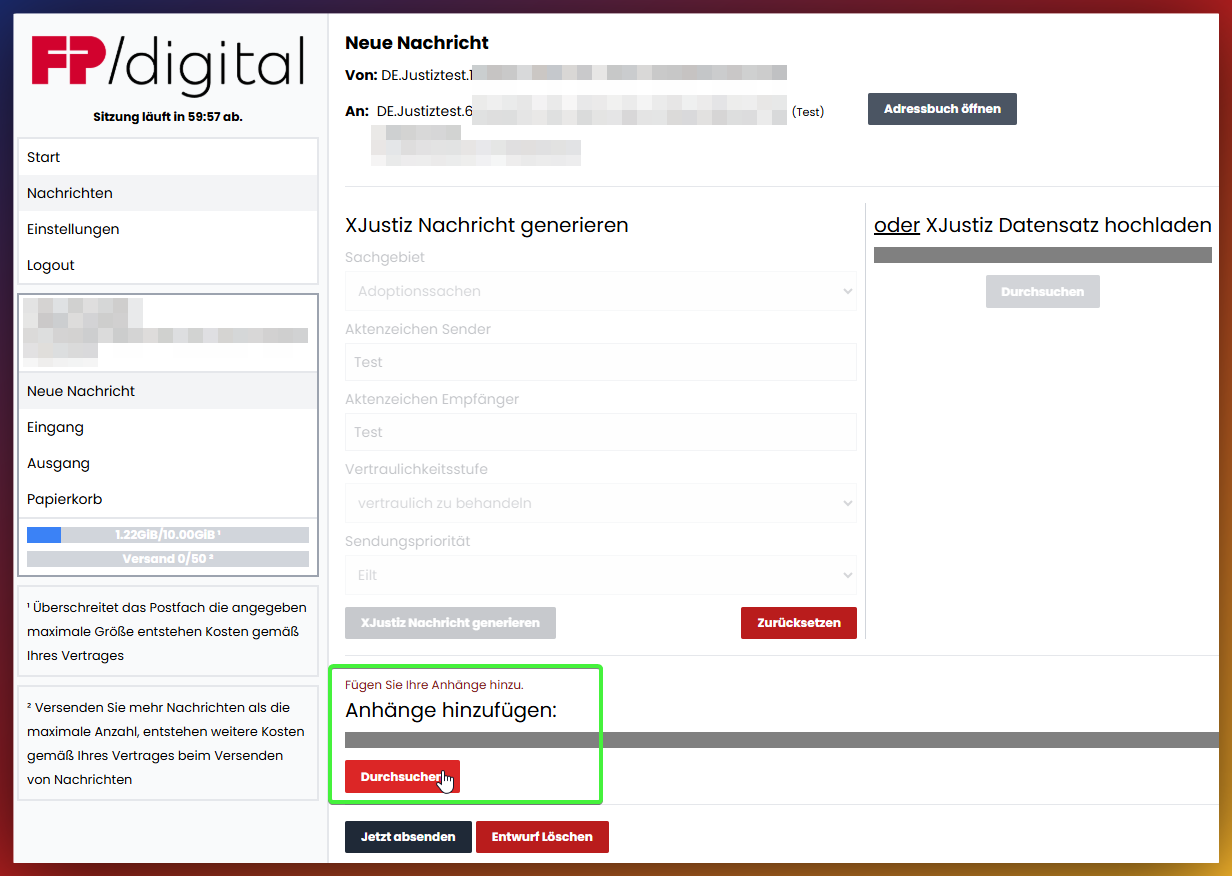
- Add attachments:Add one or more files from your computer as an attachment to your message.Please note: no messages can be written directly in the portal. The message must be written in any text editor and then uploaded as an attachment! As a rule, the courts expect a PDF file.
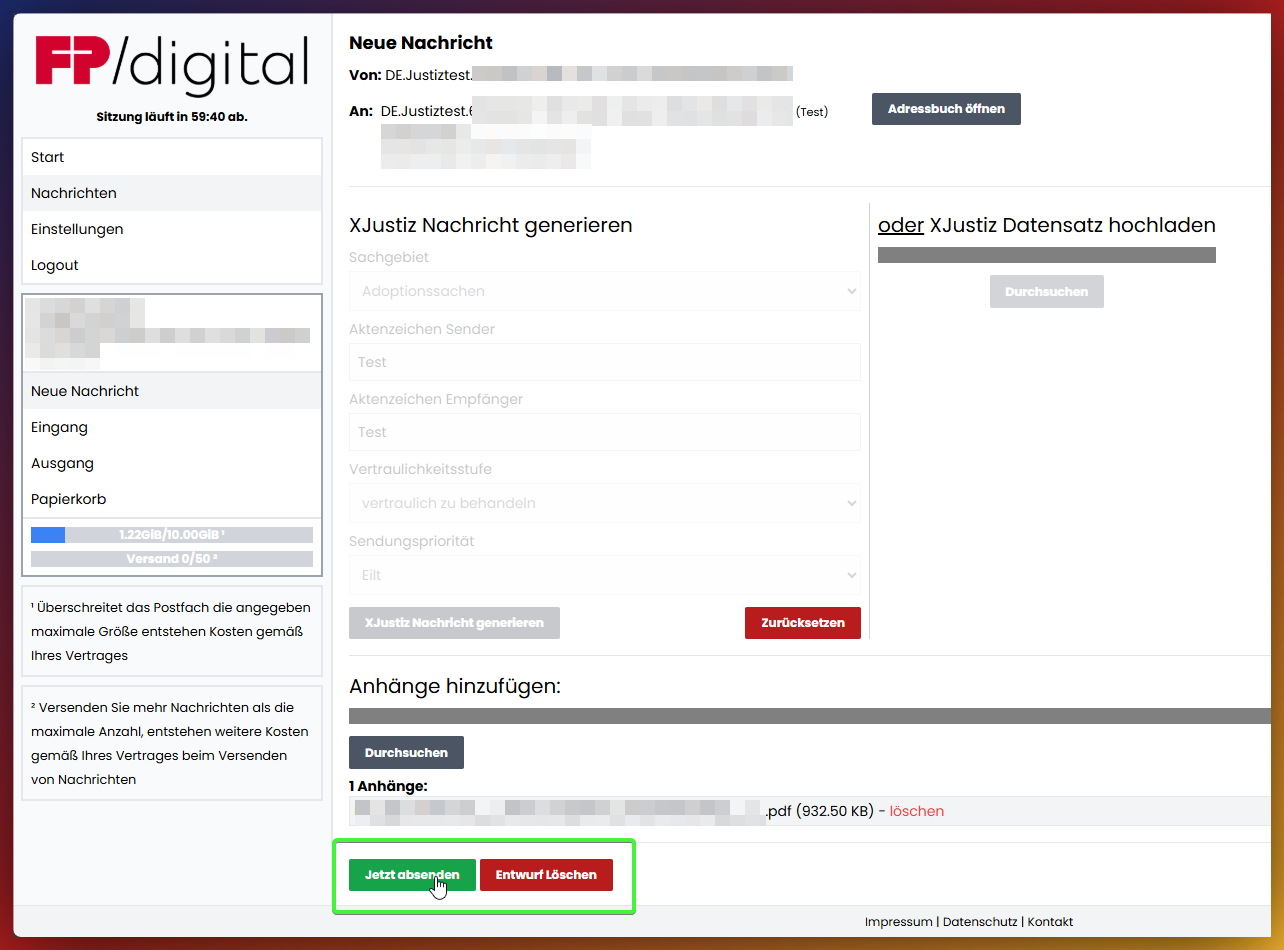
- Send now: Click here to send the message.
- Delete draft: Cancel the process and move the message to the trash.
Was this article helpful?
That’s Great!
Thank you for your feedback
Sorry! We couldn't be helpful
Thank you for your feedback
Feedback sent
We appreciate your effort and will try to fix the article